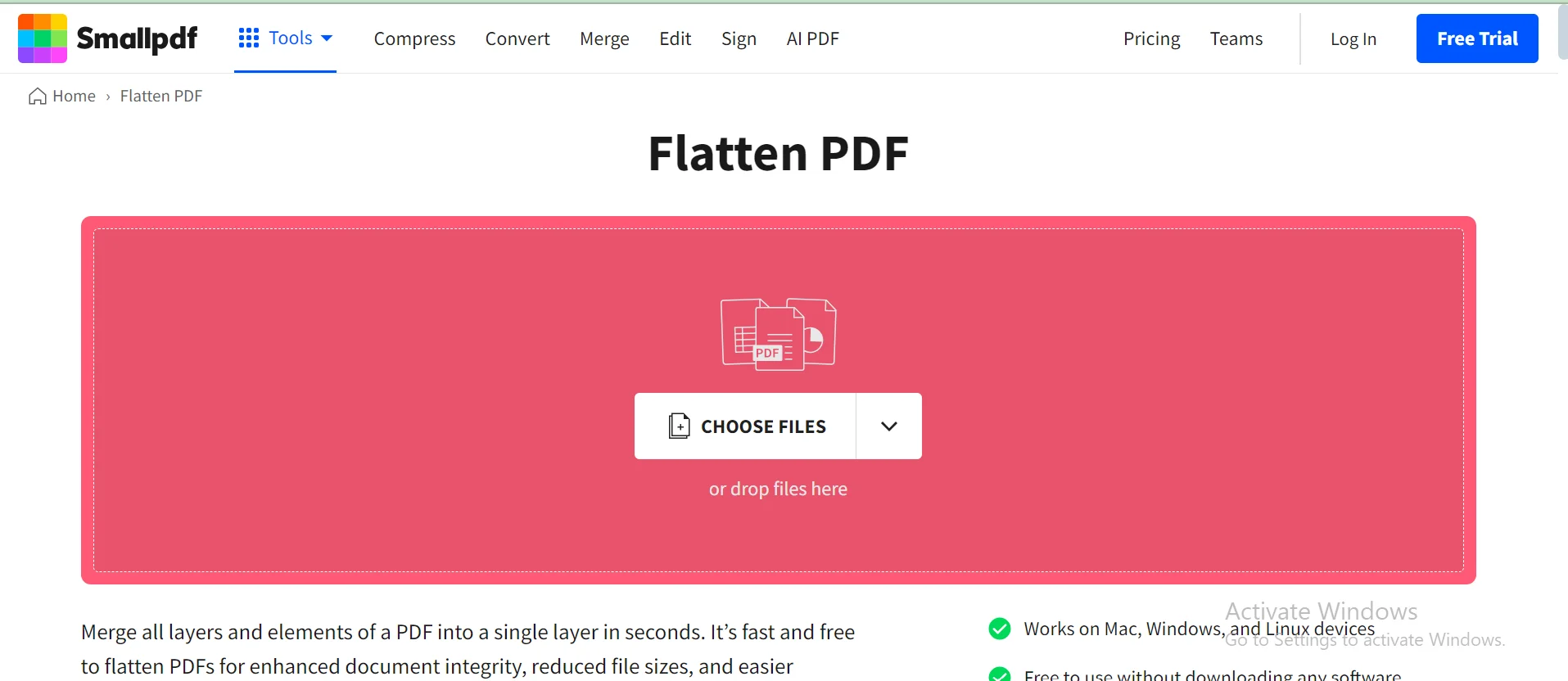
So, there I was, staring at my email outbox. A massive PDF file was stuck, spinning its little wheel of doom. My client needed that contract now, but the file was 50 megabytes—basically a digital brick. I tried everything: zipping it, deleting images, even whispering sweet nothings to my laptop. Nothing worked. Then a friend casually said, "Just flatten it." I thought they were joking. But they weren't.
I hit "flatten" in my PDF editor, and poof—the file shrank. Not by a miracle, but by a noticeable chunk. The contract looked the same, but the digital weight was gone. That moment made me curious: Does flattening a PDF actually reduce file size? Or is it just a tech myth we tell ourselves? Grab your coffee, because we're diving into this pixelated rabbit hole.
What does "flattening" even mean?
Imagine a PDF as a stack of transparent slides. Each slide has a different layer: text on one, images on another, annotations on a third. These layers are separate, like ingredients in a salad. Your PDF reader has to keep track of all of them.
Must Read
Flattening is like mushing those ingredients into a single blob. It merges all layers into one flat background image or static element. No more separate moves. No more clickable form fields. It turns your fancy interactive document into a digital photograph of itself.
Here's the kicker: if your PDF has annotations, editable forms, or complex layers, flattening often does reduce the file size. Why? Because all that metadata—the stuff that tells your computer "this text box can be edited" or "this comment is floating above page 3"—gets wiped out. That metadata takes up space.
When flattening is a size superhero
Think of a PDF with heavy transparency effects. Like a logo with a drop shadow or an image with a soft fade. Those effects require complex math for your computer to display them. Flattening simplifies that math into a single pixel grid. Boom—the file shrinks because the math gets replaced by raw image data.
Another scenario: you have a scanned document with hidden layers—maybe OCR text sitting invisibly underneath. Flattening removes that hidden text layer. You lose the searchability, but you gain a smaller file. Yes, it's a trade-off. But often a worthy one for archiving a final version.
Side note: If you're flattening a simple text PDF with no layers or fancy effects—like a plain invoice—don't expect a huge change. You might even gain a tiny bit of size. Irony alert: sometimes flattening can make a file bigger if the original was super optimized as layers.
When flattening is a size villain
Here's where it gets sneaky. If your PDF contains losslessly compressed images (like JPEGs at max quality), flattening might actually force your PDF to re-encode them. This can alter the compression format, sometimes making the images heavier. Yes, you read that right—flattening can backfire.
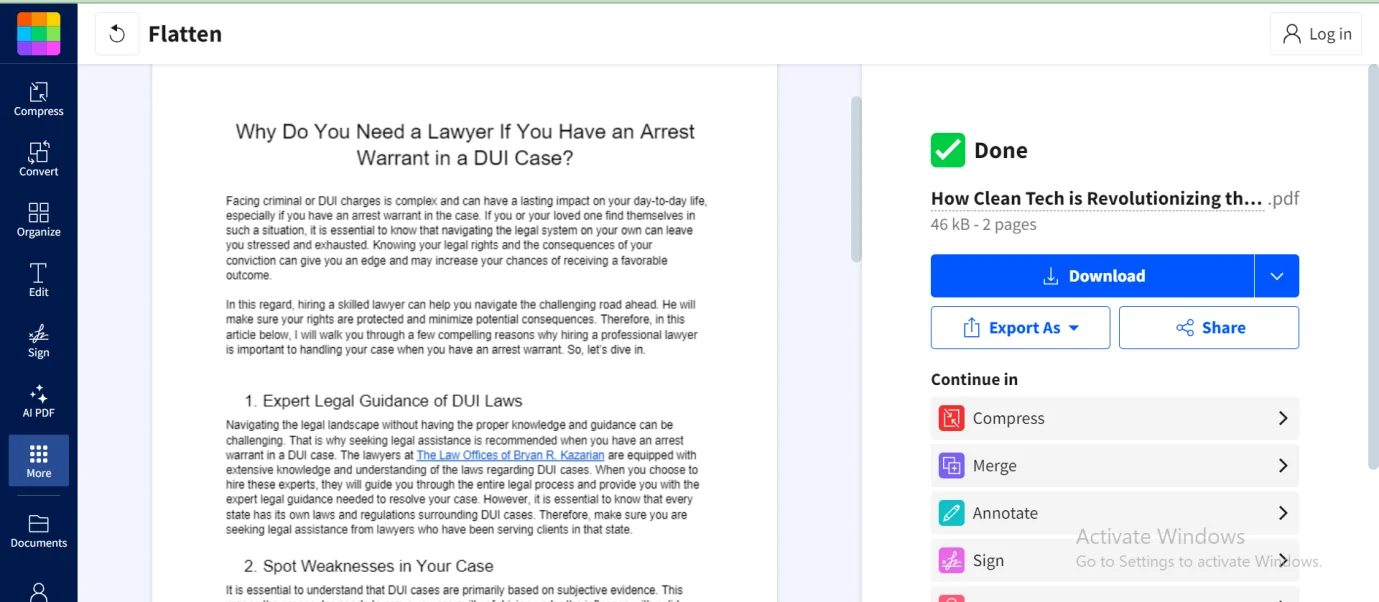 How Does Flattening a PDF Reduce File Size? Top 8 Tools to Flatten PDFs
Also, if your PDF has form fields that are mostly empty, flattening doesn't save much. The space they took was already tiny. But if those fields have loads of font data or JavaScript behind them? Then flattening feels like opening a savings account for bytes.
Pro tip: Always check the "downsample" option when flattening in programs like Adobe Acrobat. That compresses the merged image itself. Without it, you're just flattening without shrinking. Rookie mistake.
So, does it work or not?
Yes, flattening can reduce file size—but only under specific conditions. It's not a magic wand. It's more like a kitchen knife: great for cutting away excess layers, but useless if you're trying to slice through a well-organized, minimal file. Don't blame the knife if your PDF is already lean.
Before you flatten, ask yourself: does this document have annotations, form fields, transparency, or complex layers? If yes, flattening is your friend. If it's a simple PDF of pure text and basic images—like a menu—skip it. You'll save more by compressing images separately.
Real talk: Flattening is a one-way street. Once you flatten, you can't un-flatten. You lose editability, searchability (if you flatten text to an image), and interactive features. So save a backup first. I learned that the hard way after flattening a project proposal and losing all the hyperlinks. Pretty embarrassing email to send to a client.
The bottom line
Flattening is a tool, not a trick. Use it when you have fat layers to trim. Don't use it when your PDF is already on a diet. And always, always test it on a copy before committing. Your future self—and your email outbox—will thank you.
Next time someone says "flatten it," you can nod knowingly. You might even smirk, remembering how you used to think it was some kind of digital yoga. Now you know the truth: it's just deleting the invisible stuff that was weighing your file down. Kinda like cleaning out your closet. Feels good, doesn't it?