So, you’re staring at your router, feeling like you’re about to defuse a bomb, and you just need the username and password. I’ve been there, my friend. It’s the digital equivalent of losing your house keys—except the house is your internet. Relax. We’re going to find that magical combo without losing our sanity (or our hair).
The Obvious (But Often Forgotten) Spot
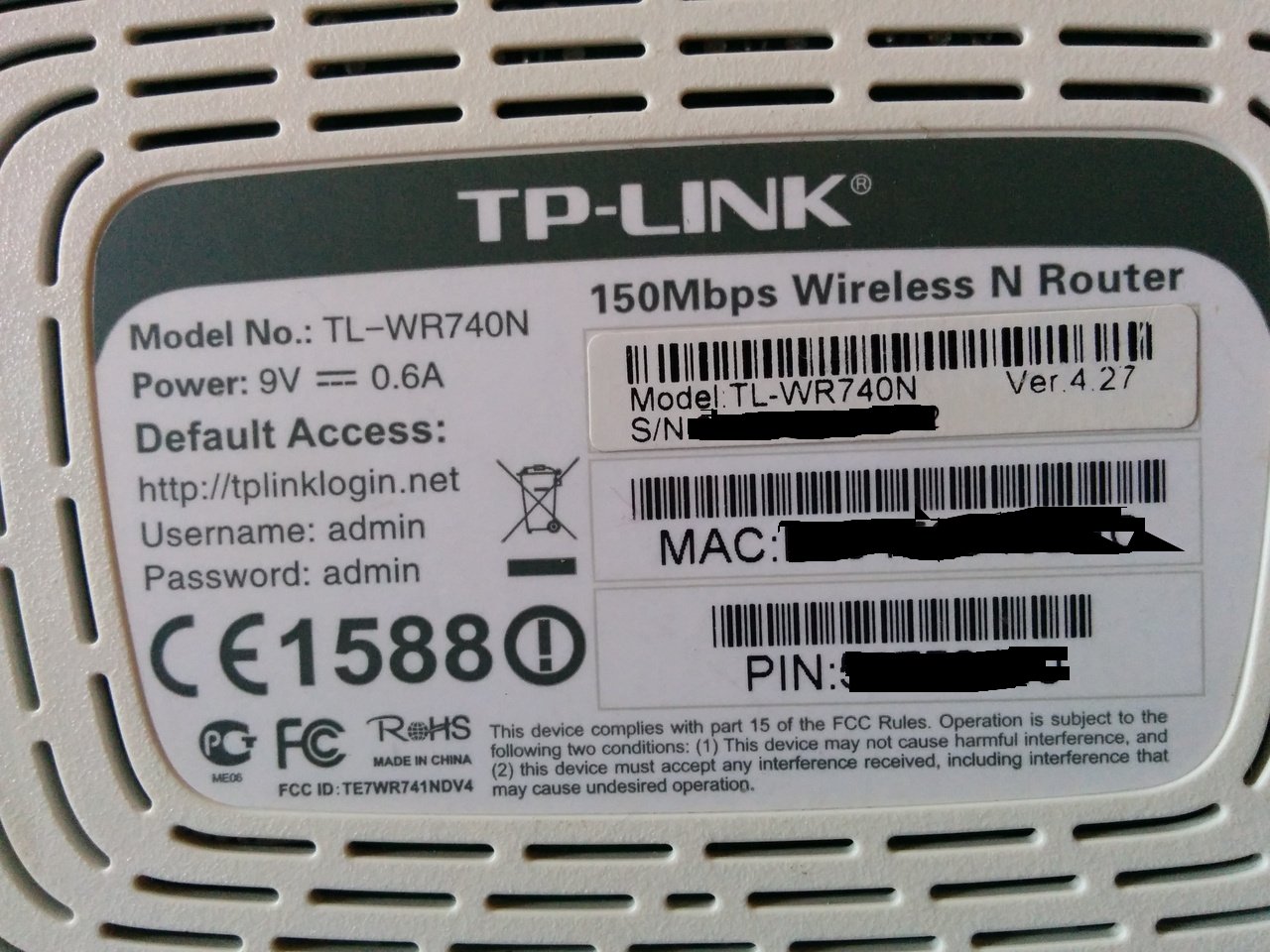
First, flip that little beast over. I mean your router, not your cat. Look for a sticker that’s usually plastered on the bottom or back—it’s like the router’s ID card. You’ll see a “SSID” (that’s the Wi-Fi name) and a “Password” or “Key” right next to it. Boom. Half the battle is won.
But wait—there’s another combo you might need: the admin username and password. This is the key to the router’s secret lair (the settings page). That sticker often has a tiny line that says “Admin Login” with a default username like “admin” and a password like “password”. Seriously, it’s that obvious sometimes. It’s like the router is saying, “Please, just let me help you.”
Must Read
What If the Sticker Is Blank or Missing?
Don’t panic—some routers are shy and hide their credentials. If the sticker is blank, faded, or literally fallen off (I’ve seen it happen), you’ve got options. The first step is to Google your router’s brand and model number. You’ll find a page that screams, “Default login: admin / admin1234!” It’s like a cheat sheet for life.
Common default combos are hilariously predictable: admin/admin, admin/password, or user/user. Some routers even use “1234” as the password. It’s like they’re begging you to change it. So try those first—you might get lucky and skip all the drama.
The “I Forgot” Scenario (We’ve All Been There)
Maybe you did change the password, but now your brain has filed it under “forgotten dreams and old Netflix passwords.” No worries. You can reset the router to factory settings. Look for a tiny, pinhole-sized button on the back or bottom—it’s usually labeled “Reset” or has a little circle icon. Grab a paperclip, push it in for 10 seconds, and poof—your router forgets everything, including the time you changed the password.
Now, the router will revert to that default sticker combo. But here’s the kicker: you’ll have to set up your Wi-Fi again. Think of it as a tiny digital spring cleaning. Your devices will need to reconnect, but hey, it’s a fun little project for a lazy afternoon.
What If You Want to Log Into the Router’s Settings?
To change Wi-Fi names, update firmware, or block your roommate from hogging bandwidth, you need the admin login. Type your router’s IP address into a browser—usually something like 192.168.1.1 or 192.168.0.1. It’s like dialing the router’s secret phone number. Once you hit enter, it’ll ask for that username and password.
If you’re stuck, open Command Prompt on Windows or Terminal on Mac. Type ipconfig (Windows) or netstat -nr (Mac) and look for “Default Gateway.” That number is your router’s front door. Write it down. Then try the default combos again—this time with confidence (and a slight smirk).
The “Last Resort” Trick
Some Internet Service Providers (ISPs) are drama queens. They give you a router with a custom admin password printed on a sticker that’s also on the router, but it’s tiny and looks like a grocery receipt. Check the fine print under the barcode. Yes, that tiny squiggly text might say “Admin Password: 1234567890.” You’re welcome.
 How to Find Your Router Password on Windows 10
If all else fails, call your ISP. I know, it’s like calling your ex—awkward but necessary. They’ll ask for your account number, verify your identity, and then either tell you the password or send a technician who will charge you $50 to press a reset button. Pro tip: reset it yourself first. Save that $50 for pizza.
One Weird Trick (That Actually Works)
Here’s a secret: most routers let you view the saved password if you’re already connected to the Wi-Fi. On a Windows PC, go to Settings > Network & Internet > Wi-Fi > Manage Known Networks. Click on your network, then “Properties,” and check “Show Wi-Fi Password.” It’s like the router is whispering, “I’ll tell you, but don’t tell anyone.”
On a Mac, open Keychain Access, search for your Wi-Fi name, and double-click it. Check the box that says “Show Password,” then enter your Mac’s login password. Boom. You’re in. You feel like a hacker from a movie, but without the creepy basement.
What About the Username?
The username for logging into your router’s settings is usually “admin”—and I mean about 95% of the time. The other 5% of routers use “user,” “root,” or (I’m not kidding) “\*.” If you see an asterisk as the username, just leave the field blank. The router has a sense of humor, apparently.
If you’re using a combo router from your ISP (like those all-in-one modem things), the admin name might be something weird like “cusadmin” or “tech”. Check the sticker again. It might be hiding in plain sight, laughing at you.
So there you have it. You’re now a certified Router Whisperer. You can find that sticker, smash that reset button, or ninja-sneak into the settings like a boss. And remember: even if you feel frustrated, your router is just a plastic box that wants to be loved. Give it a gentle pat, say “thank you,” and then change that password to something you’ll actually remember—like “BananaSplit42.”
Now go forth, connect to your Wi-Fi, and binge-watch that show you’ve been saving. You earned it. And if you ever lose the password again? Well, you know exactly where to look—and now you’ve got a new party trick.