You know that moment when you snap a ridiculously good photo of your friend’s cat, and you want to send it to them right now? Not in five minutes when you find the charging cable. Not via a blurry text message that compresses the whiskers into a pixelated mess. You need the digital equivalent of magically tossing the photo across the room. That’s exactly what AirDrop is—a little slice of Apple magic that turns your Mac into a high-speed, wireless paper airplane.
Think of AirDrop as the polite, invisible courier who lives inside your laptop. It doesn’t ask for your Wi-Fi password. It doesn’t make you type in an email address. It just knows that your friend is sitting two feet away, and it wants to help. It’s the digital version of leaning over and handing someone a napkin, but for files. And honestly, once you use it, you’ll wonder how you ever survived on a diet of email attachments and USB drives.
The Setup: Like Turning on a Silent Superpower
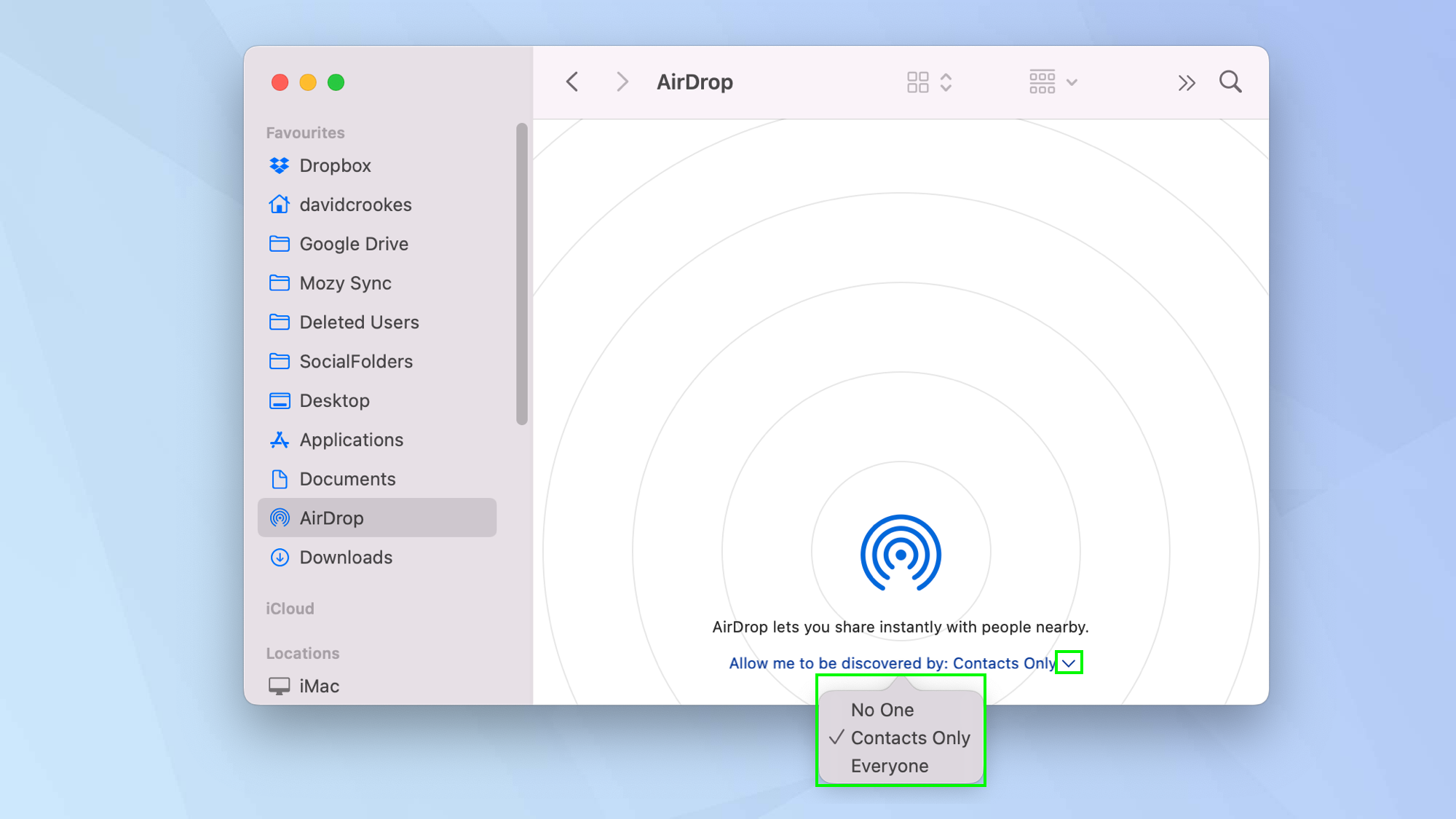
Before you can start hurling files around like a digital ninja, you need to make sure your Mac is ready. Open Finder—that smiling blue face icon in your dock. It’s the command center for your Mac’s social life. Now, look in the left-hand sidebar. You’ll see AirDrop sitting there, probably looking a little shy.
Click on it. Your Mac will start scanning the room like a sonar on a submarine. It’s looking for other Apple devices—iPhones, iPads, other Macs—that are also awake and willing to play. If you have a newer Mac, it usually just works because of that magical “Sign in with your Apple ID” handshake. But for older machines, make sure Bluetooth and Wi-Fi are both on. Think of them as the two legs your invisible courier needs to walk.
The "Who Can See Me?" Dilemma
At the bottom of the AirDrop window, you’ll see a setting that says “Allow me to be discovered by.” This is where you decide how open you are to file-throwing strangers. You have three options: No One (you’re a digital hermit), Contacts Only (only for people in your address book), or Everyone (the wild west). For a family dinner, “Everyone” is fine. In a crowded coffee shop? Maybe stick with “Contacts Only,” unless you want random people sending you memes of grumpy cats.
I once left it on “Everyone” at a tech conference. I ended up with a screenshot of someone’s grocery list and a blurry photo of a pigeon. Lesson learned. Set your boundaries, people.
 How to Use AirDrop - Techable News
How You Actually Send the Darn Thing
Let’s say you have a photo, a PDF, or a hilarious voice memo you want to share. Right-click on the file. Yes, that simple. A menu will pop up, and near the top, you’ll see “Share.” Hover over it, and then click AirDrop. A little window will appear, showing you all the nearby devices with their contact photos or generic icons.
Click the person’s face. It’s that easy. Your Mac will make a satisfying whoosh sound (or a gentle “thwip” on older models), and the file takes off. On the other person’s device, they’ll hear a similar noise and see a pop-up asking if they want to accept. They hit Accept, and boom—the file lands in their Downloads folder or Photos app like a feather falling from a cloud.
I once AirDropped a 4K video of my dog rolling in mud to my brother. He was in the same room, staring at his phone. He looked up, confused, and said, “Did you just… throw a video at me?” Yes. Yes, I did. That’s the power.
The Common Fails (And How to Laugh Them Off)
Sometimes AirDrop plays hard to get. Your Mac says “Waiting…” for five minutes, and you start making weird faces at your friend’s laptop. First, check that both devices are within 30 feet of each other. Bluetooth has a short attention span. Also, make sure neither device is in “Do Not Disturb” mode—that’s like putting a “No Solicitors” sign on your invisible courier.
 What Is AirDrop? How Does It Work? – A Comprehensive Guide
If all else fails, turn Bluetooth and Wi-Fi off and on again. It’s the digital reset button for awkward silences. I once had to do this at a party, and the recipient said, “You’re basically blowing on the Nintendo cartridge of the future.” Accurate.
Why AirDrop Is the Best Friend You Didn’t Know You Had
AirDrop is the ultimate “no excuses” tool. Forgot your charging cable? AirDrop. Need to send a recipe to your mom across the kitchen? AirDrop. Want to share a PDF of your vacation itinerary with a friend without clogging their email inbox? AirDrop. It works with almost any file type—photos, videos, documents, even entire folders. It’s the Swiss Army knife of casual file sharing.
And here’s the best part: no compression. That photo still has all its juicy pixels. That video still looks crisp. It’s like sending a file via a private, high-speed cable, but without the cable. You are a digital magician, and AirDrop is your wand.
So next time you’re at a friend’s house and they ask for that picture of the nachos you just took, don’t fumble with email attachments. Open Finder, click AirDrop, and send it like a boss. They’ll think you’re a genius. You’ll know you’re just using the tool that Apple hid in plain sight. Go on. Start throwing files. It’s addictive.