So, you’ve got a shiny new iPhone. Congratulations! You’re now the proud owner of a pocket-sized supercomputer that also happens to make phone calls. But right now, your contact list is basically a ghost town. Let’s fix that, shall we? Don’t worry—it’s way easier than trying to explain TikTok to your grandpa.
Method 1: The Classic “Add Manually” Move
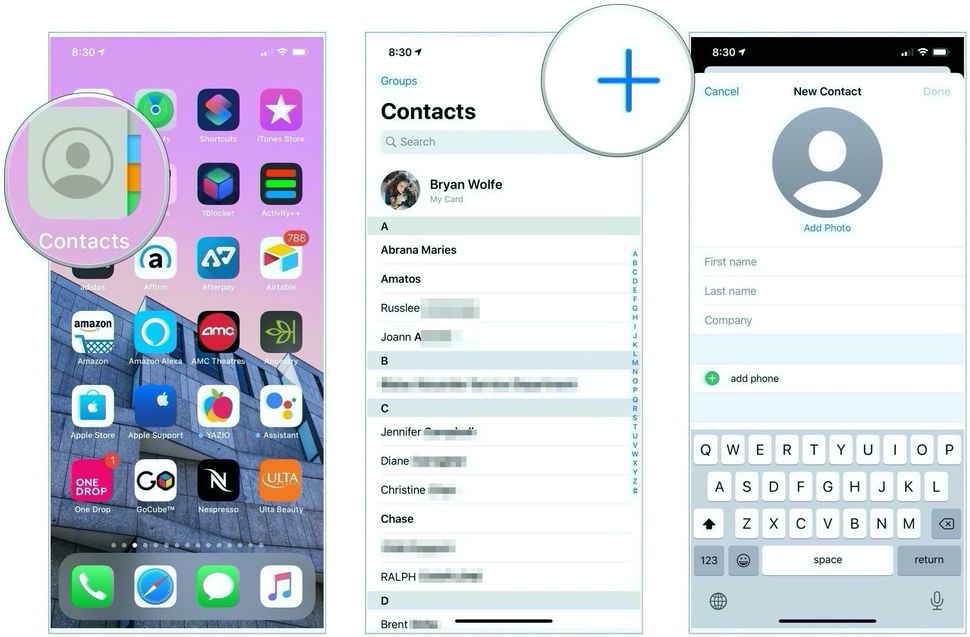
First up, the old-fashioned way. Open the Phone app—that green icon with a white handset. (Yes, the one you probably ignore when your mom calls.) Tap the Contacts tab at the bottom, then hit the + sign in the top-right corner. It’s like a tiny invitation for a new friend to crash your digital address book.
Now, fill in the blanks. First name, Last name, and Phone number are the holy trinity here. You can also add an email, a birthday, or even a ringtone that’s embarrassingly specific. (I’m looking at you, “Fart Noises” for your best friend.) Once done, tap Done, and voilà—you’ve made a digital friend!
Must Read
Method 2: The “Thief’s Delight” (AKA Import from Email)
Let’s be real—typing out every single number is a drag. If you’ve got contacts saved in Gmail, Outlook, or iCloud, you’re in luck. Head to Settings (the gray gear icon that lives on your home screen like a nosy neighbor). Scroll down to Contacts, then tap Accounts.
Add or toggle on your email account—say, Google. Your iPhone will magically slurp up all those addresses and names from the cloud. It’s like a digital vacuum cleaner for your social life. Just be warned: it might also import that weird guy from spam emails who calls himself “King.” Delete him. You’re the king of your phone now.
Method 3: The “Sneaky QR Code” Trick
Yes, iPhones can scan QR codes to add contacts. Who knew? Ask your friend to show you their contact QR code (they generate it in their own Contacts app). Open your Camera app, point it at the code, and tap the Contact Banner that appears.
Your phone will ask if you want to Add them. Say yes, obviously—unless it’s your ex’s QR code taped to a lamppost. In that case, run. This method is perfect for meeting new people at parties, though you should probably actually talk to them first. “Nice QR code” is a weird icebreaker.
 3 Quick Ways to Add Contacts to Your iPhone for Convenience
Quick Tip: The “Call Me” Shortcut
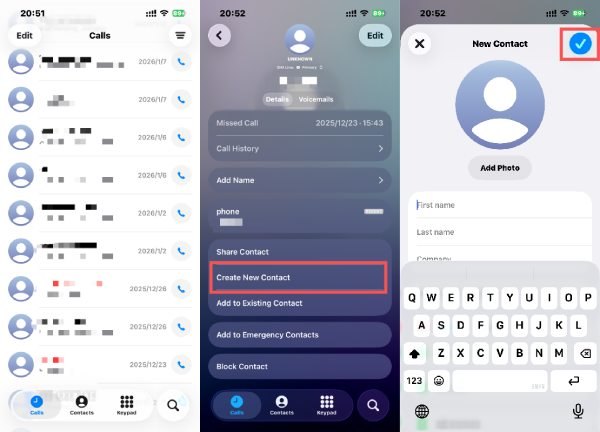
If someone calls you and they’re not in your contacts, this is your chance! Tap the i icon next to the unknown number. Then hit Create New Contact or Add to Existing Contact.
It’s like finding a lost puppy and deciding to keep it. Just make sure they’re not a telemarketer. (Though, let’s be honest, “Spam Risk” might already be in your favorites list.) Rename them “Do Not Answer” and move on with your life.
Method 4: The “Share Contact” Power Move
Got a friend with a contact you desperately need? Ask them to Share Contact via AirDrop, iMessage, or even a good old-fashioned email. When you receive it, tap the file and hit Add.
Your iPhone will handle the rest—no typing, no tears. It’s the digital equivalent of a friend handing you a business card made of pure wi-fi magic. Just don’t abuse this power. Your friend’s dentist doesn’t need to be in your “Mom’s Bridge Club” group chat.
 4 ways to create a new contact on your iPhone
Bonus Round: Siri to the Rescue
Sometimes you’re just too lazy to tap. That’s okay—Siri gets it. Say, “Hey Siri, add a new contact named Ursula with the phone number 555-1234.” Siri will do the work, and you can pretend you’re in a sci-fi movie.
Just be careful: if you mumble, Siri might save “Ursula” as “URL Suh-lah.” Now you’ve got a tech support nightmare on your hands. Speak clearly, young Padawan.
Why Bother with All This?
Because life is too short to type out numbers from sticky notes. Adding contacts turns strangers into people you can actually call when you’re lost at the grocery store. It’s the first step to being a functioning adult in the 21st century—right after learning how to screenshot, anyway.
And here’s the secret: every name you add is a little piece of your story. That friend who always sends you memes at 2 AM? Saved. Your cousin who still uses a flip phone? Saved. The pizza place that knows your order by heart? Absolutely saved.
So go ahead—add some contacts. Make your phone feel loved. And remember: your iPhone might have a thousand features, but your contacts are the magic that makes it a phone instead of a shiny brick. Now, go text your mom. She’s waiting.