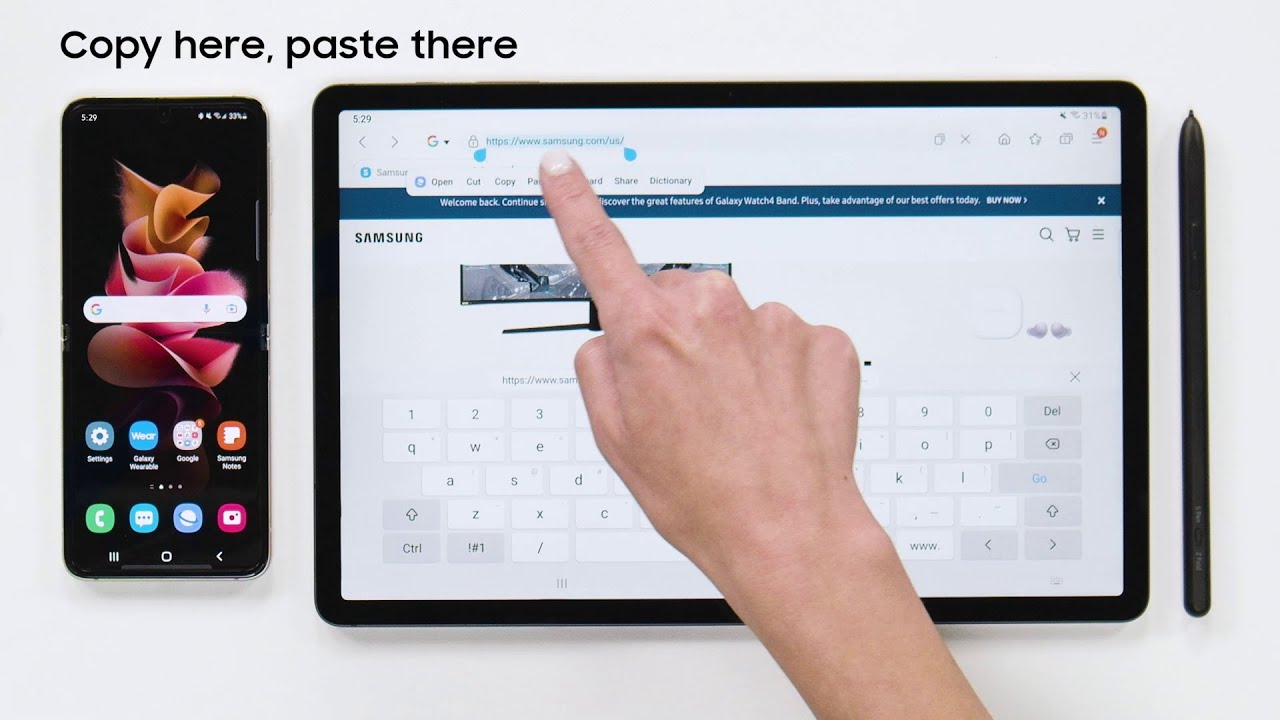
Last week, my uncle called me in a panic. He’d spent an hour trying to move a recipe from a website into a note on his new Galaxy Tab. He was about to throw the thing out the window. I told him to relax—copy and paste on a Samsung tablet is actually easier than making toast.
The Moment It Clicks
You’ve probably been there. You tap on a word, and suddenly the whole screen goes haywire. Don’t panic; that’s just your tablet trying to help (even if it feels like the opposite). The secret is all about touch-and-hold—the sacred gesture that unlocks the portal to copy-paste glory.
Here’s the trick: press and hold your finger on any word until it gets highlighted. You’ll see blue handles pop up on both sides. Think of them as tiny goalposts for your text selection.
Must Read
Fine-Tuning Your Selection
Now, drag those handles to highlight exactly what you need. Want just one sentence? No problem. Need the whole paragraph? Just drag the bottom handle down like you’re pulling a curtain. Side note: if you have fat fingers like me, zoom in first. It saves you from accidentally grabbing the wrong word and starting over.
Once your text is blue and glowing, let go. A little pop-up menu will appear above your finger. It usually says Copy, Paste, and sometimes Select All. Tap the one that says “Copy.” The tablet will whisper “Copied to clipboard” (not literally, but you’ll feel the magic).
Where Did It Go?
This is where most people get stuck. You copied it, but now what? Open the app where you want the text—Notes, Messages, or even a Google Doc. Tap and hold in the blank space where the text should appear. That same pop-up menu will come back, but this time it says Paste.
Tap it, and bam—your text appears. First time? Feels like sorcery, right? If you hate the result, just tap “Undo” or shake the tablet (seriously, some models let you shake to undo).
Pro Tips for Power Users
What if you want to copy something from a web page that won’t let you select text? This happens a lot on recipe sites or news articles. Try opening the page in Samsung Internet’s “Reading mode” first. It strips away the annoying blocks and lets you grab text freely.
Bonus trick: You can copy multiple items at once. On newer Samsung tablets, tap the clipboard icon on the Samsung Keyboard. It saves your last few copies. Yes, you can copy a recipe, a phone number, and a funny meme—all at the same time. Your future self will thank you.
When the Tablet Fights Back
Sometimes, the pop-up menu just doesn’t appear. You tap and hold, and nothing happens. Don’t start Googling “tablet broken.” You probably just pressed too hard or too softly. Try again with a slower, softer touch. If that fails, restart the tablet. Nine times out of ten, a fresh boot fixes the grumpiness.
 How to Copy and Paste on a Samsung Galaxy Tab (Text, Links & Files Step
Another weird glitch: you paste text, and it looks like a mess of symbols. That’s because the original source had weird formatting. Tap “Paste as plain text” if you see that option in the menu. It strips out the weird fonts and gives you clean, boring text. Boring is good here.
Copying Images? Yes, You Can
You’re not limited to words. If you find a photo or a meme you love, press and hold on the image. The same menu will show up with Copy image. Then go to your gallery or a note, and tap-hold to paste it. It’s like teleporting pictures with your brain.
Pro warning: some websites block image copying. If that happens, take a screenshot instead (press Power + Volume Down). Then crop the screenshot. It’s one extra step, but it still works.
The Real Magic Is in the Details
Here’s one thing no one tells you: you can copy from Samsung Notes and paste into a different app, and the formatting might change. Always preview your paste before sending it to your boss. A weird font or missing bullet point can make you look careless.
If you’re using the S Pen (the stylus), you can also highlight text by dragging the pen across it. The pop-up menu appears just the same. Honestly, it feels fancier than using a finger. Try it once, and you’ll never go back.
When All Else Fails
Let’s be real—sometimes the tablet just wants to embarrass you. You tap, nothing. You tap again, it pastes the wrong thing. Breathe. Go to your keyboard, tap the clipboard icon, and manually tap the item you want. This is your emergency lever.
Still broken? Check for system updates in Settings > Software Update. Samsung pushes fixes that make touch input smoother. I know, updating is boring, but it’s cheaper than buying a new tablet.
So the next time you need to steal a quote or grab a recipe, remember the golden rule: hold, select, copy, and paste. You now have the power. Use it wisely—and maybe teach your uncle while you’re at it.