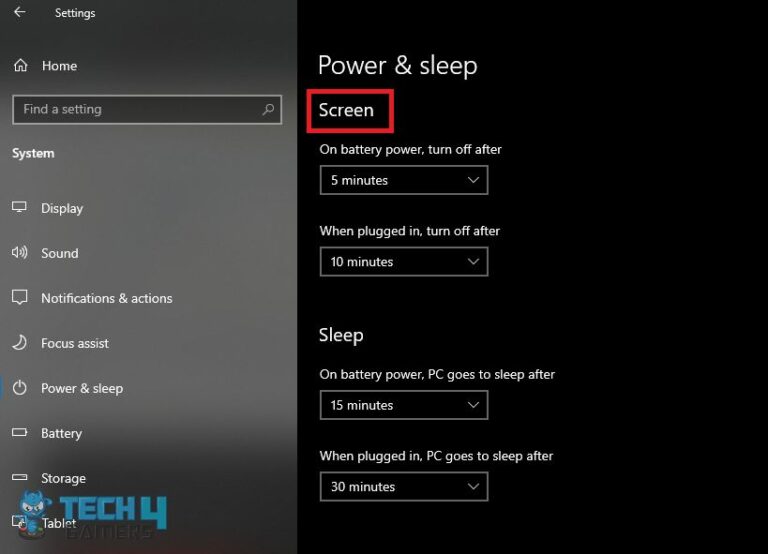
Last Tuesday, I was deep into an online chess match—five minutes left on the clock, my queen poised for a checkmate. Then, my cat decided my keyboard was a trampoline. Suddenly, my screen was a frantic blur of cursors and flipped tables. I needed a pause button for reality, and fast.
That’s when I remembered the magic of freezing a laptop screen. No, it’s not a spell from a fantasy novel (though that would be cooler). It’s a simple trick to halt everything on your display without shutting down your work. Think of it as hitting pause on a movie you weren’t finished watching.
Why Bother Freezing Your Screen?
You might think, “I’ll just close the lid.” Wrong. Closing the lid often sends your laptop to sleep or hibernation, which can break downloads, kill ongoing renders, or—worst of all—lose that half-typed ranty email to your landlord. Freezing is different: it keeps the machine running while you step away.
Must Read
It’s perfect for those “oh-no” moments. Presentations where you need to hide your messy desktop, or when your boss walks by while you’re browsing 90s meme compilations. (Hey, no judgment here—we’ve all been there.) The freeze buys you three solid seconds to regain your dignity.
The Old Reliable: Keyboard Shortcuts
Let’s start with the easiest method. On Windows, you can hammer the Windows key + D to instantly show the desktop. But that’s not a true freeze—it just hides windows. For a real freeze, try Windows key + L. This locks the screen, freezing everything behind the login wall. Your work stays exactly as you left it, safe from prying eyes and curious cats.
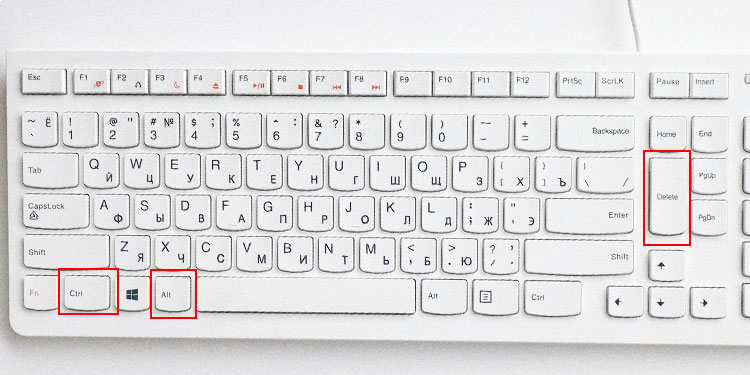 How To Freeze A Screen On Windows And Mac
For Mac users, it’s even simpler. Hit Control + Command + Q to lock the screen instantly. Or use Control + Shift + Power to put just the display to sleep while the laptop keeps humming. Your screen goes black faster than a magician’s trick—abracadabra, gone.
And if you’re on Linux? You’re probably already used to customizing everything, so I’ll toss you a bone: try Super + L for Gnome, or just install a lock-screen app. You’ll figure it out—you always do.
The “Cheater’s” Freeze: Software Tools
Sometimes the keyboard is too clumsy. Maybe your hands are full of coffee and guilt. In that case, let software do the heavy lifting. Tools like AutoHotkey (Windows) let you program a single key, like F12, to instantly freeze the screen—or even black it out completely. I have mine set to simulate a system crash crash (jk, it just shows a fake “updating” screen).
 Fix Laptop Screen Freez In Windows 11 - YouTube
For the paranoid among us, ScreenBlur (a free app) lets you blur or freeze your display with a keyboard shortcut or a mouse wiggle. You can even set it to auto-freeze when you step away from your webcam. Ironic, right? Technology solving the problems it created.
The Nuclear Option: Disable Touchpad & Keyboard
What if you need to freeze the screen while preventing anyone from typing or clicking? That’s the advanced move. On Windows, go to Device Manager, find your keyboard and touchpad, and “Disable” them. Your screen stays frozen, and no one can unfreeze it by accident. Just don’t forget you did this, or you’ll be that person frantically googling “how to re-enable keyboard” on their phone.
Mac users can use Keyboard Maestro or BetterTouchTool to disable inputs with a trigger. It’s like putting your laptop in a straitjacket. Makes you feel like a hacker in a cheesy movie—totally worth it.
 How To Freeze A Computer Screen [All Platforms + Windows] - Tech4Gamers
A Cautionary Tale (With Cupcakes)
Last thing: freezing is not the same as saving your work. Always save first, unless you enjoy the adrenaline rush of risking three hours of spreadsheet work. I learned this the hard way when I froze my screen mid-bake—literally, I was reading a cupcake recipe—and then my battery died. The screen unfroze into a blue screen of death. The cupcakes were fine. My pride? Not.
So, next time your boss strolls into the room unannounced, or your toddler discovers the keyboard, remember: freeze, don’t freak. A locked screen is a happy screen. And if you want to feel like a true digital ninja, set up a shortcut that winks the display off with a single press. You’re welcome.
Now go forth and freeze like a pro. Just don’t blame me if your cat learns to unlock your laptop—because they will. They always do.